Sometimes you want to linger on a photo, point out a detail, or give everyone a moment to share a memory. With TV remote controls in PictaCast, you can do that from your seat.
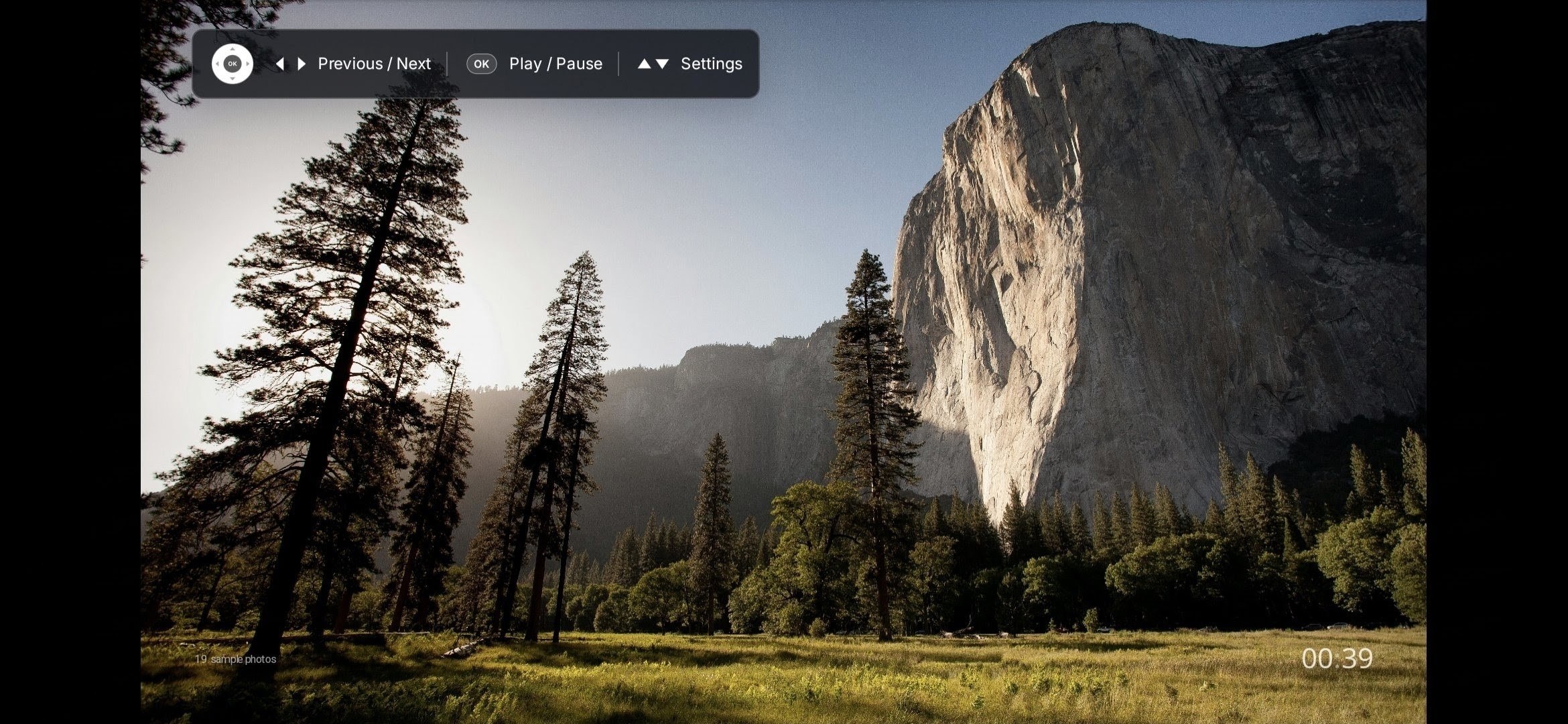
Three simple controls
While the slideshow is showing, use the directional buttons and the centre button on your remote:
| Button | Action |
|---|---|
| Left / Right | Previous / Next photo |
| OK (centre button) | Play / Pause |
| Up or Down | Open Settings |
If your remote has dedicated rewind, fast-forward, or play/pause buttons, those continue to work too.
Make adjustments from your seat
Press Up or Down to open Settings over your photos. Change the slideshow style or speed, turn shuffle on or off, and adjust the display options available for your current style.
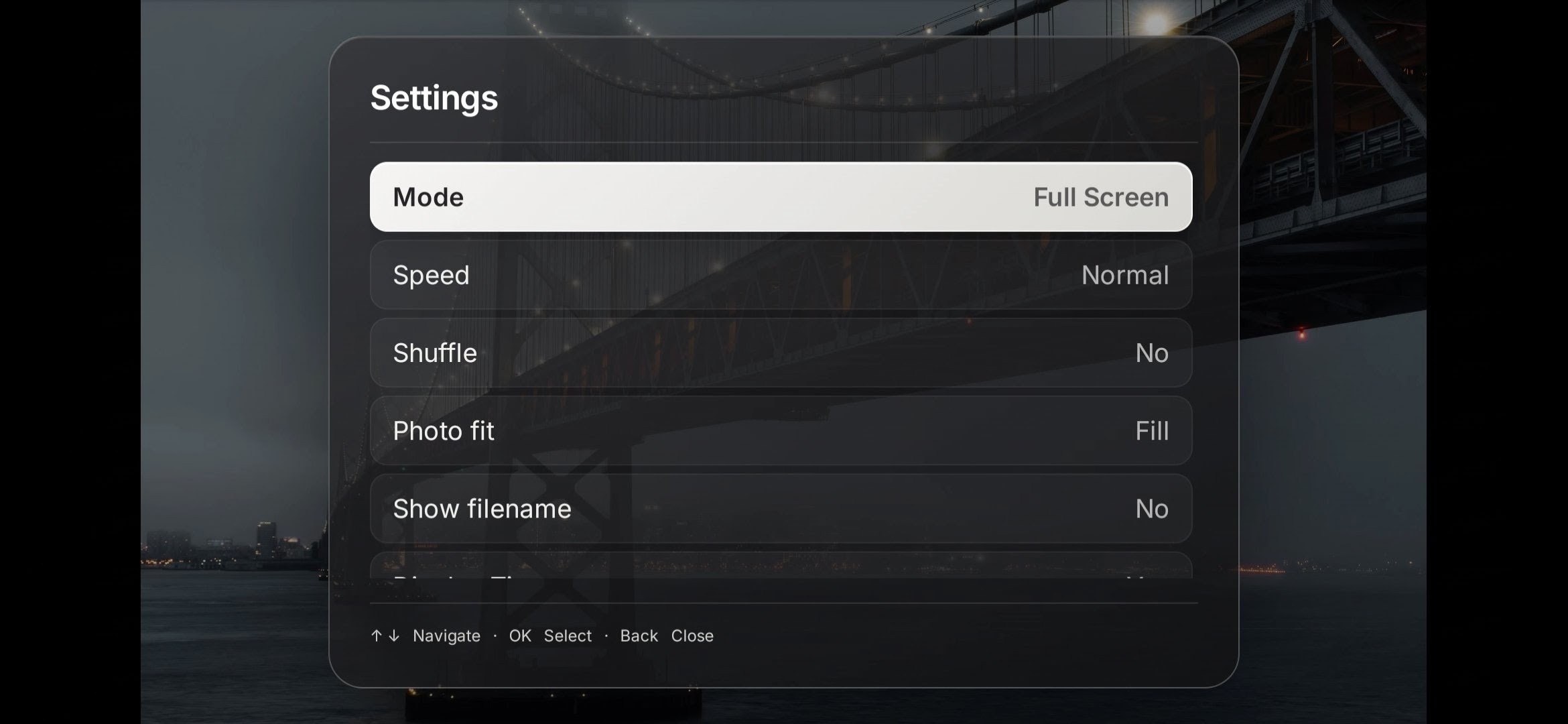
Inside Settings, use Up / Down to move through the options and OK to select. The press that opens Settings leaves the first option selected, so you can get your bearings.
Press Back in a submenu to return to the main settings menu. Press Back there to close Settings and return to your slideshow.
Available on compatible TVs
Remote controls are available on compatible TVs when PictaCast plays photos directly on the TV. Support depends on your TV and remote.
If you are using Stream from Device, or your TV does not respond to the remote, you can continue controlling the slideshow from your phone or computer. Learn more about direct TV playback and how to choose it in Advanced Settings.
Put your feet up and enjoy your photos
Start a slideshow in PictaCast, then try the remote controls on your compatible TV.
Launch PictaCast